


Choose one of the following links to find answers to your questions.
|
|
What is the SecureKEY? |
|
Is there a difference between using the SecureKEY as an I'm inTouch Premium or Standard user? |
|
How do I activate/reactivate my SecureKEY? |
 |
What is Physical Authentication and how do I enable it for my SecureKEY? |
|
Can I transfer files to my SecureKEY? |
 |
Can I disable access from my SecureKEY in case it is lost? |
 |
Is it safe to store passwords on the SecureKEY and enable Auto-Login? |
 |
I need to remotely access my computer but do not have my SecureKEY with me and Physical Authentication is enabled. Is there anyway I can access my PC? |
|
What type of operating system can I use the SecureKEY with? |
 |
Do I need to reactivate my SecureKEY if I update I'm InTouch ? |
 |
How much does the SecureKEY cost? |
| |
|
|
| |
The SecureKEY allows all I'm InTouch subscribers to securely save their login information on the device and then automatically login to their I'm InTouch computer simply by inserting the SecureKEY into the USB slot of any PC.
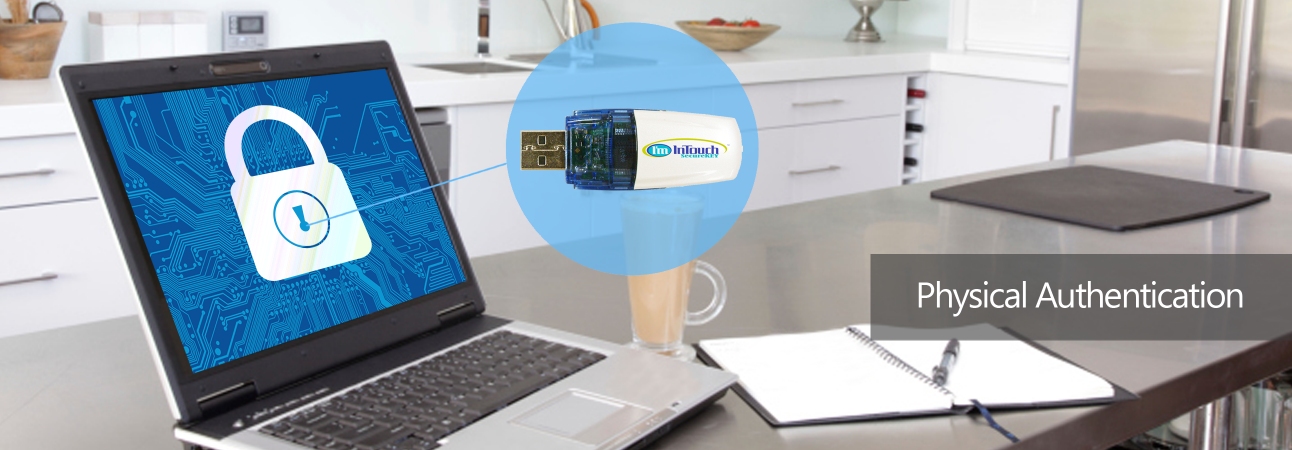
I'm InTouch Premium users have the added option of enabling Physical Authentication to require that only a computer with their SecureKEY attached can remotely access their I'm InTouch Premium computer.
|
Is there a difference between using the SecureKEY as an I'm inTouch Premium or Standard user? |
| |
I'm InTouch Standard users cannot use the SecureKEY as a Physical Authentication tool, this is only available to Premium subscribers. |
How do I activate/reactivate my SecureKEY? |
| |
If you have not activated your SecureKEY, simply place it into the computer with I'm InTouch already installed that you wish to remotely access. The activation process will automatically begin. Enable Auto-Login, select the login fields you would like prefilled and click Start.
To reactivate your key, place it into the computer with I'm InTouch already installed that you wish to remotely access. Double-double click the green satellite, go the User Information screen, and click the SecureKEY button. Enable Auto-Login, select the login fields you would like prefilled and click Start. |
What is Physical Authentication and how do I enable it for my SecureKEY? |
| |
Physical Authentication allows I'm InTouch Premium users to require that their SecureKEY be present when accessing their remote computer to prevent unauthorized access even if the correct login information is entered.
To enable Physical Authentication (PA) for your SecureKEY, login to your I'm InTouch Premium account, select the checkboxes next to the computers you would like to enable PA for and click the Physical Authentication link.
For each computer, you can choose between 4 options for SecureKEY PA:
- Required: Your SecureKEY must be present in the remote computer whenever you try to remotely access your distant PC.
- Not Required + Block my old SecureKEYs: Your SecureKEY is not required but if a SecureKEY is present in the remote computer, it will be validated to ensure no one is trying to use an old SecureKEY to access your PC.
- Not Required (Auto-login purposes only): Your SecureKEY is not required and will not be validated. Use this option if you have multiple SecureKEYs activated with the same user on the same computer.
- Block Access from all SecureKEYs: This option allows you to block any computer from accessing your I'm InTouch PC using the SecureKEY. Enable this if you lose your SecureKEY and want to ensure there is no unauthorized access.
|
Can I transfer files to my SecureKEY? |
| |
You can use your SecureKEY as a 1GB USB flash drive to store files. This will not overwrite the SecureKEY files itself as they are in a protected area on the device. |
Can I disable access from my SecureKEY in case it is lost? |
| |
Yes, if you are an I'm InTouch Premium user and have access to the List of Computers page:
- Login to your Premium account at www.imintouch.com
- Check the box next to the computer your SecureKEY is associated with that you want to block access to and click the Physical Authentication link
- Under the SecureKEY Physical Authentication setting select "Block access from all SecureKEYs"
If you are an I'm InTouch Standard user or do not have access to the List of Computers screen :
- From your computer with I'm InTouch installed, double-click the green satellite in your system tray and go to the User Information tab.
- Click the SecureKEY button
- Uncheck Enable Auto-Login to ensure the SecureKEY cannot be used to login to your PC
|
Is it safe to store passwords on the SecureKEY and enable Auto-Login? |
| |
All information stored on the SecureKEY is encrypted to ensure no one can view your login information.
It is up to the user to determine the number of Auto-Login fields they wish to store on the SecureKEY. We recommend storing all fields except My Desktop remote controlp Password to protect against unauthorized access if the SecureKEY is lost or stolen. |
I need to remotely access my computer but do not have my SecureKEY with me and Physical Authentication is enabled. Is there anyway I can access my PC? |
| |
Yes, if you have access to the List of Computers page.
- Login to your Premium account at www.imintouch.com
- Check the box next to the computer your SecureKEY is associated with that you want to access and click the Physical Authentication link
- Under the SecureKEY Physical Authentication setting select "Not Required - Auto login purposes only "
- Click Save
You can now access your computer without the SecureKEY. When you are finished, to reenable Physical Authentication, follow the above steps but select Required. |
What type of operating system can I use the SecureKEY with? |
| |
The SecureKEY is compatible with Windows 2000/XP/Vista.
The SecureKEY can be used as a 1GB Flash Storage Drive with virtually any operating system that recognizes USB Storage devices. |
Do I need to reactivate my SecureKEY if I update I'm InTouch ? |
| |
No, updating I'm InTouch does not affect your SecureKEY. The only times you need to reactivate the SecureKEY is if you want to use the SecureKEY with a different user/computer or if you reinstall I'm InTouch. |
How much does the SecureKEY cost? |
| |
The MSLP for the SecureKEY is $129.95. Discounts are available for I'm InTouch subscribers. Contact us to find out more. |